
This comprehensive Windows 11 guide for beginners is designed for people who want to understand their computer without stress or confusion. Through these six tutorials, you will learn how to create and manage your user accounts securely, but also how to personalize your screen. Being able to configure your computer brings a real sense of comfort to your daily life: by adding a lovely family photo or your favorite landscape, you transform your screen into a welcoming and reassuring space. Thanks to this Windows 11 guide for beginners, your machine will finally adapt to your tastes and needs, making you completely independent.
Designed for reading comfort with screenshots at every step, this Windows 11 guide for beginners features a large 14-point font that is ideal for seniors and first-time users. Each guide comes in a printable PDF format, perfectly optimized for standard paper (8.5 × 11 Letter or A4 size) to ensure a seamless transition from screen to page.
These guides can be used as a step-by-step physical manual that stays right next to your keyboard. This makes this Windows 11 guide for beginners the most practical and stress-free way to master your PC at your own pace, without ever feeling lost between tabs or windows.
Secure checkout powered by Gumroad.
Read our articles: How to change your wallpaper — How to Create a User Account on Windows 11
Every step is clearly illustrated so you know exactly what to do at every moment. For every action, this Windows 11 guide for beginners provides a screenshot that matches precisely what appears on your computer, accompanied by simple explanations of where to click and why.
This level of detail eliminates hesitation and prevents mistakes. Following this windows 11 guide for beginners gives you the confidence you need to achieve lasting success with technology.
Here is a detailed look at the content of this 70+ page windows 11 guide for beginners:
👤 User Account (2 tutorials):
How to Create a new User Account
Step 1: Open Settings
Step 2: Open the Accounts section
Step 3: Other users
Step 4: Add a new user
Step 5: Make your choice and finalize your account!
- Option 1: Create a Microsoft account with an email address
- Option 2: Create a local account
Step 6: Log in to your new account
Conclusion
How to Manage User Accounts
Switching Between User Accounts
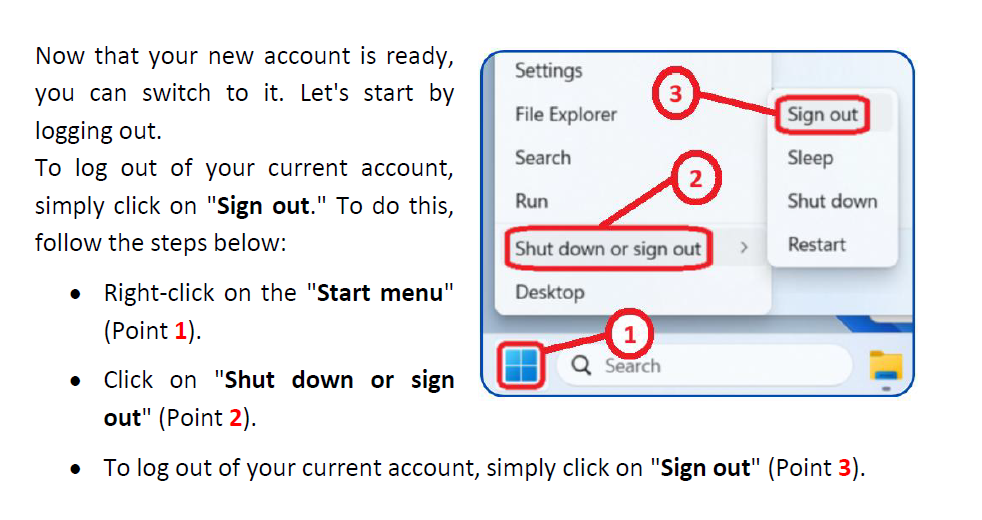
Step 1: signing out
Step 2: log in to an account
Removing a User Account
Step 1: Open Settings
Step 2: Go to Accounts
Step 3: Other users
Step 4: delete the user account
Modifying an Existing Account (Name, Type, etc.)
Step 1: Run dialog box
Step 2: User Accounts
Step 3: change the settings
🎨 Customize your Windows Account (4 tutorials):
How to Change Your Account Picture
Step 1: Open Settings
Step 2: Go to Accounts
Step 3: Your info
Step 4: Choose your photo or image
Step 5.a: Take a photo (Camera) Step 5.b: Choose a file (Browse photos)
How to Change the desktop background
Step 1: Open Personalization Settings
Step 2: Go to the Background Settings
Step 3: Choose a New Image
Step 4: Choose a solid color for your desktop background
Step 5: Select the Slideshow option
Step 6: Select the Windows spotlight option
How to Changing the Windows Theme
Step 1: Open personalization settings
Step 2: Go to theme settings
Step 3: Available themes
Step 4: Current theme
Step 5: Theme components
Step 5.a: Background personalization
Step 5.b: Color personalization
Step 5.c: Sound personalization
Step 5.d: Mouse cursor personalization
Step 6: Download more themes
Step 6.a: Select your new theme
Step 6.b: Apply your new theme
How to customize the taskbar
Step 1: What is the Taskbar?
Step 2: Opening Taskbar Settings
Step 3: Taskbar Items
Step 4: System Tray Icons
Step 5: Hidden Icons Menu
Step 6: Taskbar Behaviors
Step 7: Date and Time
Step 8: Managing Your Notifications
Step 9: How to Pin and Unpin an Application
Conclusion
Secure checkout powered by Gumroad
Before customizing your computer with this windows 11 guide for beginners, do you need help getting online?
If your computer is brand new and you first need to set up your internet connection or learn how to safely surf the web, make sure to check out our complete Internet for Beginners and Seniors on Windows 11. It is the perfect first step before diving into your Windows settings!