
A printable PDF pack focusing on internet for beginners, beautifully designed for seniors and first-time users on Windows 11 computers.
This pack includes two comprehensive, step-by-step tutorials to help you get online and start browsing with confidence:
Connecting to Wi-Fi (9 pages)
The essential internet for beginners guide to opening digital doors, stress-free.
Detailed Description: This ultra-visual guide on internet for beginners will help you connect to the wireless network. Designed specifically for new users, it takes you by the hand right from the moment you turn on your Windows 11 computer. Thanks to explanations free of technical jargon, connecting your computer to your home router, a loved one’s network, or a hotel connection becomes child’s play.
Benefit — Rediscovered Independence: The exclusive step-by-step troubleshooting section allows you to independently resolve 90% of common minor issues (such as a router resetting, a mistyped password, or a weak signal).
Benefit — A Window to the World: Accessing the internet for beginners will open the doors to a whole new world. You will have access to information and universal knowledge. You can contact your loved ones via video call, no matter the distance between you. You will also be able to complete your administrative tasks online. The online world is also a place for entertainment and creativity: you can chat on social media, share your creations, or play games.
Web Browsing Essentials (13 pages)
The passport to exploring the digital world in total safety.
Detailed Description: Once connected, it’s time to explore! This second comprehensive tutorial on internet for beginners transforms the Web into a familiar and reassuring space. It details how to open your browser, use a search engine effectively, and decipher search results pages. The focus is on organization so that you quickly feel “at home” online.
Benefit — Safety and Vigilance: You will learn to browse with total peace of mind. This guide gives you the keys to navigating serenely.
Benefit — Everyday Time Saver: Thanks to mastering “Favorites,” there is no more need to write down complex web addresses on scraps of paper that get lost. With a single click, the user instantly finds their news site, favorite recipe, or online administrative portals.
Format: Printable PDF – Optimized for 8.5 × 11 (Letter) paper – Large 14-point font for comfortable reading
Secure checkout powered by Gumroad
Every step is clearly illustrated.
Each action in this internet for beginners guide is explained using real screenshots that match exactly what you see on your screen. Nothing is assumed.
Every click, icon, and message is shown and explained so seniors and newbies never feel lost or rushed. This step-by-step approach helps build confidence and allows each person to move forward at their own pace.
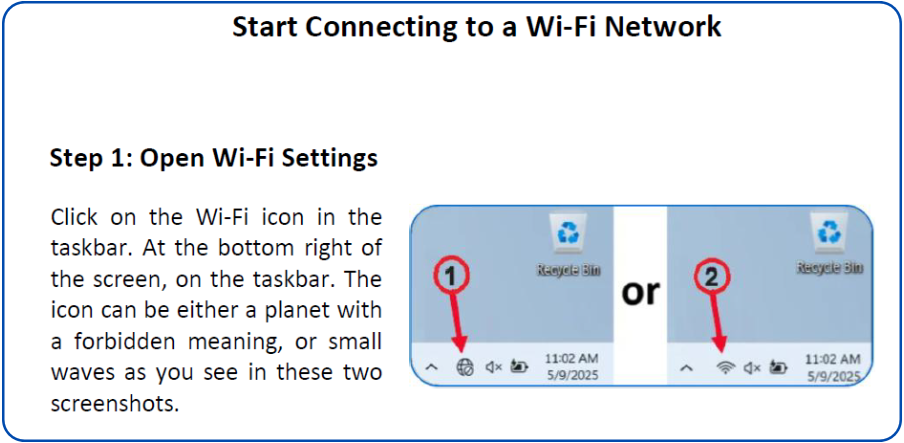
Here is what you will discover inside these two tutorials:
This pack is specifically designed as a complete internet for beginners guide to help you surf the web with total confidence and ease.
How to Connect a Wi-Fi network
Start Connecting to a Wi-Fi Network
Step 1: Open Wi-Fi Settings
Step 2: Make sure Wi-Fi is enabled
Step 3: Choose a Network
Step 4: Enter the Password
Step 5: You are now connected!
Wi-Fi Troubleshooting Steps
Step 1: Verify your password
Step 2: Restart the router
Step 3: Ensure you are within signal range
Step 4: Toggle Airplane Mode
Step 5: Forget the network and reconnect
Step 6: If possible, connect with an Ethernet cable
Step 7: Check for a general service outage
Conclusion
How to browse the Internet
Step 1: Discovering what a browser is
Step 2: The search bar
Step 3: How to search effectively
Step 4: Understanding the results page
Step 5: The “Back” and “Forward” arrows
Step 6: Discovering the address bar
Step 7: Adding a favorite
Step 8: Finding and opening a favorite
Secure checkout powered by Gumroad
Ready to take your digital skills to the next level?
Learning how to browse safely is just the first step. To completely protect your new digital life, we highly recommend upgrading your safety habits with our main digital security pack.
This essential addition to your internet for beginners journey includes two more step-by-step tutorials: How to Create a Strong Password (8 pages) and How to Get Started with Cloud Storage (9 pages).
These practical guides will show you exactly how to lock down your personal data and automatically back up your precious family photos and papers. Check out our complete Digital Security Pack here and navigate with absolute peace of mind.