
Whether you are setting up a new computer for yourself or helping a loved one get started, knowing how to create a user account on Windows 11 is one of the first and most important steps. A user account keeps your files private, your settings personal, and your computer organized. In this article, we explain what you need to know and what you need to do to create a user account on Windows 11 safely and easily.
Why Create a User Account on Windows 11
Before you create a user account on Windows 11, it helps to understand why it matters.
A user account is like a personal space inside your computer. Each person who uses the device has their own space, their own files, and their own preferences. Without a proper account, your documents, photos, and settings could be mixed up with someone else’s or worse, left unprotected.
As Microsoft explains on its official support page, Windows 11 is specifically designed to support multiple user accounts on the same device, keeping each person’s files and settings completely separate.
Here are the main reasons to create a user account on Windows 11:
- Privacy : your files stay yours and are not visible to other users on the same computer.
- Security : a password-protected account prevents unauthorized access.
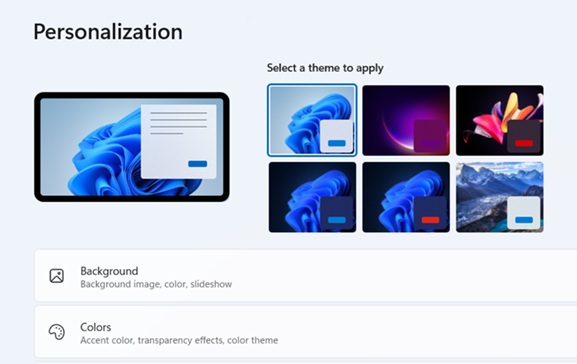
- Personalization : Choose your own wallpaper and make your account truly yours. Your desktop, language, and preferences are saved just for you.
- Parental or caregiver control : separate accounts allow a caregiver to manage settings without affecting the personal space of the senior or your children.
- Safety and peace of mind: creating a standard (non-administrator) account prevents accidental mistakes. For instance, it stops someone from accidentally deleting critical system files or installing malware and unwanted software that could slow down the computer.
Whether you are a beginner or helping someone else, you should create a user account on Windows 11 before doing anything else on a shared or new computer.
How to Create a User Account on Windows 11: Step by Step
To create a user account on Windows 11, you will need to go through several settings on your computer. The process involves a few key decisions along the way, such as choosing the type of account and setting up a secure password, and each choice matters for the safety and comfort of the user.
If you want to learn more about password creation, you can check out our guide on the subject: 🔒 Digital Safety guide: Create a strong password & Master the Cloud
The steps are manageable for a beginner, but the menus can be hard to find if you don’t know where to look. Missing one step or making the wrong choice can cause confusion later.
That is exactly why we created a detailed printable guide with screenshots for every single click, written in plain language for seniors and beginners:
🖥️ Windows 11 Guide for Beginners – User Accounts & Personalization
For Seniors : Create a User Account on Windows 11 Easily
If you are a senior and you want to create a user account on Windows 11 on your own, the good news is that it is absolutely possible, even without any technical background.
To create your account, you will need to follow several steps, one by one, without skipping anything. However, the menus can sometimes be difficult to find or confusingly worded.
A few important things to keep in mind before you start :
- If you are using a laptop, ensure it is plugged in and not running on battery only.
- Have a password ready that you can remember or write it down in a safe place immediately after creating the account.
- If you are asked to use a Microsoft account (with an email address), know that a local account is also an option and does not require an internet connection.
- Take your time, there is no rush and no risk as long as you carefully follow each step. The steps will be clearly explained to guide you throughout the creation of your account.
🖥️ Windows 11 Guide for Beginners – User Accounts & Personalization
For Caregivers : Create a User Account on Windows 11 for Your Loved One
For Caregivers : Help Your Loved One Create a User Account on Windows 11
Setting up a computer for a parent or grandparent is an act of love but it comes with a hidden challenge. If you do everything yourself, they will call you every time something goes wrong. The real goal is not just to configure the computer for them, but to give them the tools to use it on their own, with confidence.
Creating a proper user account on Windows 11 is the first step toward that independence. A well configured account means they can find their files easily, their settings stay the way they like them, and their personal space is protected without needing your help every time.
The tricky part is that the process involves several technical choices that are easy to get wrong. The wrong account type, a forgotten password, or a missed setting can quickly turn into confusion and frustration for them and for you.
Our printable step by step guide is designed so that your loved one can follow every decision on their own, at their own pace in plain language, with a screenshot for every single click. Your role is simply to be there if needed.
🖥️ Windows 11 Guide for Beginners – User Accounts & Personalization
Tips After You Create a User Account on Windows 11
Once you successfully create a user account on Windows 11, there are a few good habits to adopt right away :
- Above all, do not forget your password. Writing it down is not recommended, but if you still wish to do so, keep it in a safe place, not on a post-it note stuck to the computer.
- Test the account by logging out and logging back in to make sure everything works correctly.
- If you have chosen an administrator account, be careful not to delete important files that could prevent the computer from working properly.
If you want to go further and fully secure and personalize a new Windows 11 computer, our complete beginner’s guide covers every step with screenshots, simple language, and printable pages you can keep near your computer.
Conclusion
Learning how to create a user account on Windows 11 is a simple but essential step for anyone getting started with a Windows computer. It protects your privacy, organizes your files, and makes the experience more personal and secure, whether you are a senior discovering technology for the first time, or a caregiver setting up a computer for someone you love.

The steps exist, the process is manageable, and with the right guidance, anyone can do it.
Need a clear, printed guide to follow step by step? Our Windows 11 beginner’s tutorial is available at tech-for-starters.com, designed for seniors and beginners, with screenshots for every single step:
🖥️ Windows 11 Guide for Beginners – User Accounts & Personalization